




Hello everyone, this is tosuke.
In this article, I'll introduce simple tips for linking literature between the free reference management software Zotero and Google NotebookLM.
First, if you're not familiar with Zotero, please check this out:
I've compiled comprehensive information about Zotero, from basic usage to the latest AI integrations, in the following Note. It's packed with useful information for mastering Zotero and has been well-received, so if you're interested in reference management, please take a look.
Also, if you don't know about Google NotebookLM yet, please refer to this article:

Method 1: Using Google Drive
The first method is to use Google Drive.
For this approach, you need to be managing your Zotero papers in the cloud using Google Drive. Please refer to the articles below for instructions:
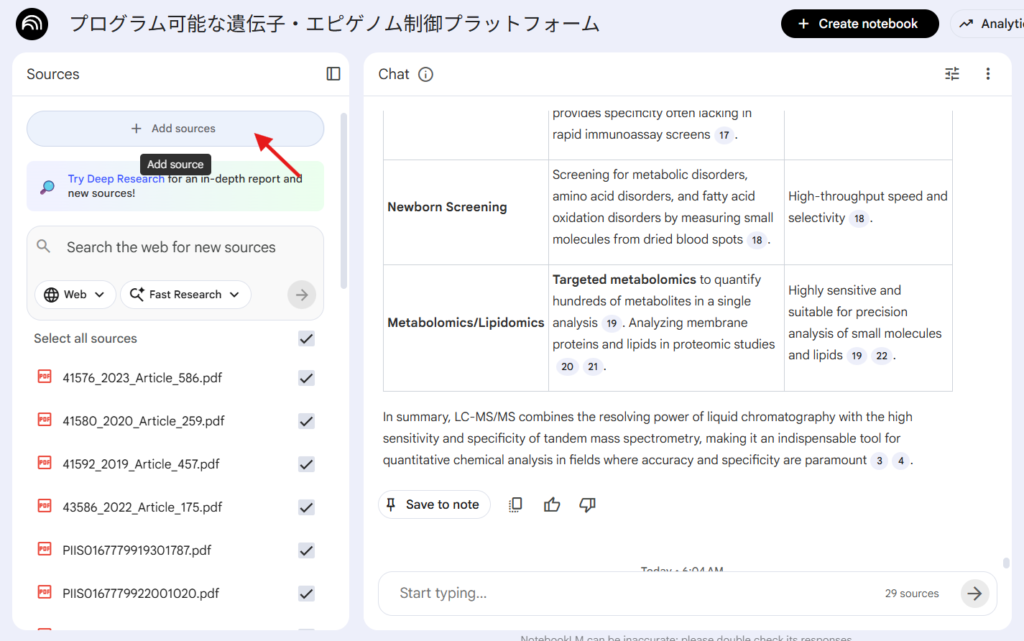
With this method, first select "add sources" from Google NotebookLM. You can choose this either when creating a new notebook or from the screen shown below in an existing notebook.
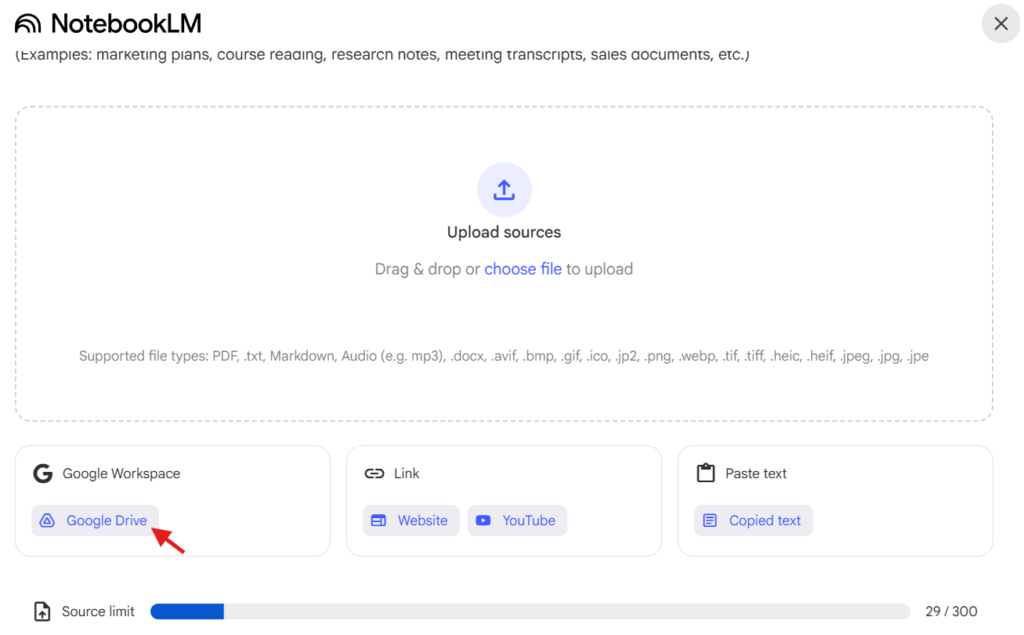
Next, on the source selection screen, choose Google Workspace > Google Drive.
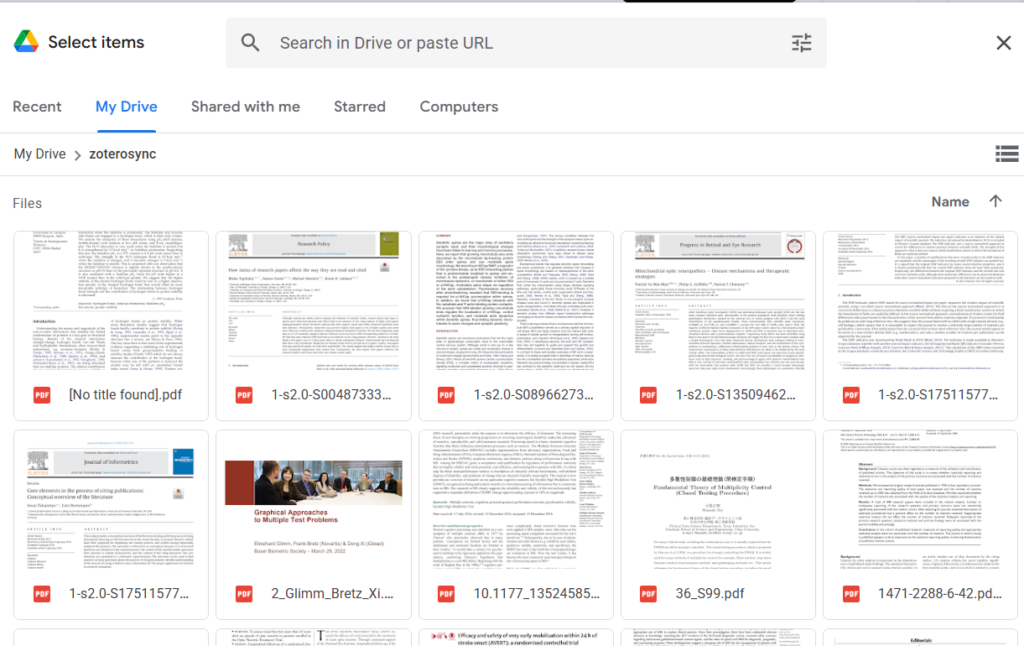
Here, if you select the folder where you're saving papers from Zotero, a list of papers will appear. You can narrow them down using the search function at the top of the screen and select the paper files you need to add sources to Google NotebookLM.
With this, you can select papers from Zotero and use them as sources to get AI responses. If you're saving Zotero papers on Google Drive, please give this a try.
Additionally, the PDF filenames saved to Google Drive can be specified as desired from the following settings section in Zotero. Select "Edit" > "Settings" from the top tab, and choose "Customize File Format" from "General."
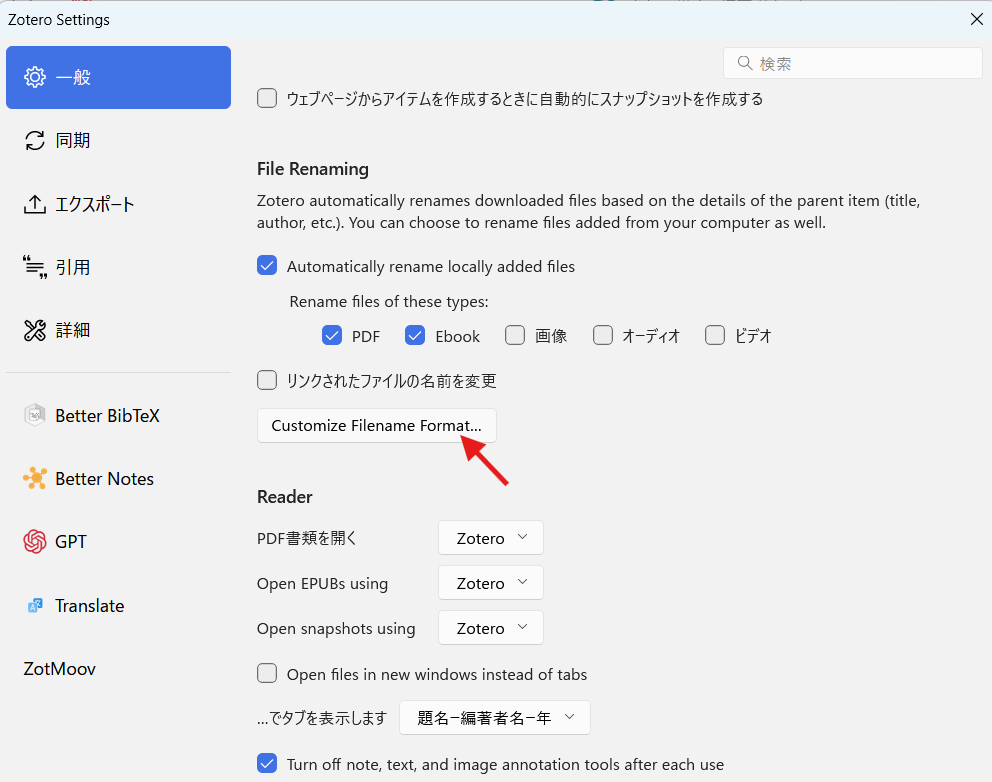
On the screen that opens, you can choose how to name PDF files, so it's convenient to use a filename format that's easy to search and understand. By default, it includes the author, year, and beginning of the title.
Method 2: Exporting Files in Bulk from Zotero
This method is recommended for those who aren't syncing with Google Drive or who find it difficult to search from Google Drive.
First, in the Zotero screen, use tags or the search function to narrow down the papers you need, then select multiple papers by Shift+clicking and choose "File" > "Export PDFs" from the top menu.
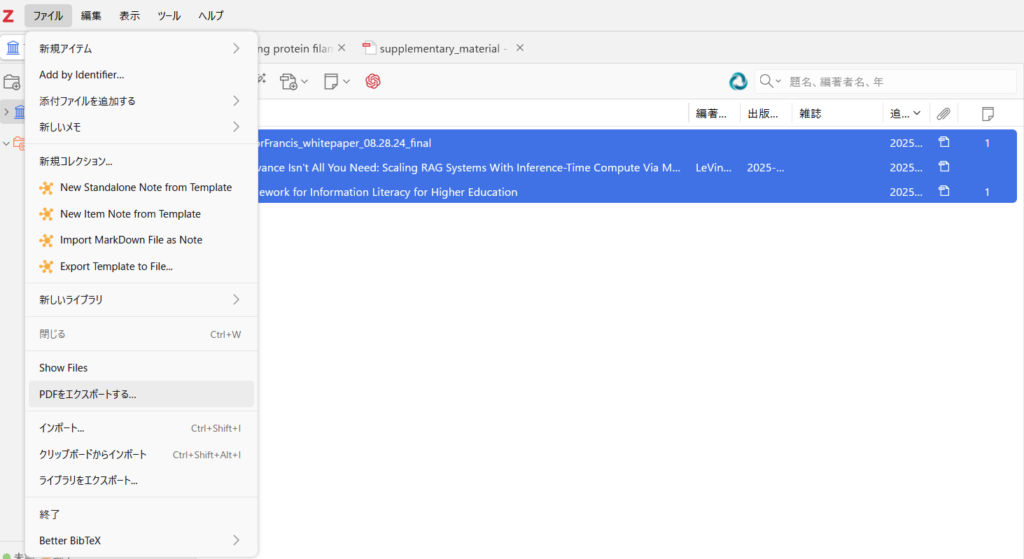
This allows you to output paper PDFs to a folder in bulk, and then you just need to drag and drop these into the "add sources" screen of Google NotebookLM.
The paper PDFs output to the folder here are copies of the original files, so you can delete them when they're no longer needed.
Summary
Google NotebookLM is a very convenient tool for extracting information relatively faithfully from papers, summarizing them into videos or slides, and obtaining information from limited sources.
The combination with Zotero is also relatively simple, so please make good use of it.

コメント