





In this article, I'll introduce a method to manage your Obsidian knowledge organization tool in the cloud for free using GitHub. While Obsidian offers official cloud management, it's normally a paid service.
Using GitHub involves quite a few technical aspects, so this content is somewhat advanced. However, once you get it working, it's extremely convenient for backup management and syncing programs and notes.
I highly recommend this for those who not only need knowledge management for research but also require some programming. I'll write this as a beginner-friendly article, so please give it a try.
A video explanation version will be posted in the future.
- What Are Git and GitHub?
- Overview of the Specific Steps
- 1. Create a GitHub Account
- 2. Create a Repository on GitHub
- 3. Install Git (Windows)
- 4. Create SSH Keys
- 5. Turn Your Obsidian Vault into a Git Repository
- 6. Connect to GitHub Repository
- 7. Initial Upload (push)
- Syncing After Initial Setup
- Summary
- Additional Note
What Are Git and GitHub?
Git was originally a system for managing the source code of the Linux OS. If you do programming, you'll know that as you write and modify code, it can become unclear what changed, and you may want to revert changes when bugs occur.
That's where Git comes in handy. By regularly managing change history with this system, you can (once you get used to it) easily revert to previous states, compare differences, and create branches.
GitHub is a system that enables sharing this online, allowing you to use your managed Git across multiple users and devices.
Today, we'll use this to share an entire Obsidian folder across multiple devices.
Overview of the Specific Steps
First, let's look at the overall flow:
- Create a GitHub account
- Create an empty repository on GitHub
- Install Git on your local PC
- Create SSH keys and register them with GitHub
- Make your Obsidian Vault a Git repository
- Connect to GitHub via SSH
- Upload data
- Sync as needed when updating
While there are many steps, once you complete steps 1-7, you can continue syncing with just step 8. Let's work hard once to avoid losing your valuable knowledge.
As a precaution, please note that files uploaded to GitHub are basically limited to 50MB. If you use videos, lots of images, heavy PDFs, or want to backup plugin settings data that uses AI, this method won't work.
1. Create a GitHub Account
Access https://github.com
If you already have an account, you can skip this step.
First, access the GitHub official site.
Click "Sign up" and register your username and password. Since you might share source code with others using this username in the future, choose a name you won't be embarrassed to show others (?). Also, since it becomes part of your URL, alphanumeric characters are recommended.
2. Create a Repository on GitHub
Next, let's create a repository (something like a folder).
Select the + in the upper right of GitHub → New repository.
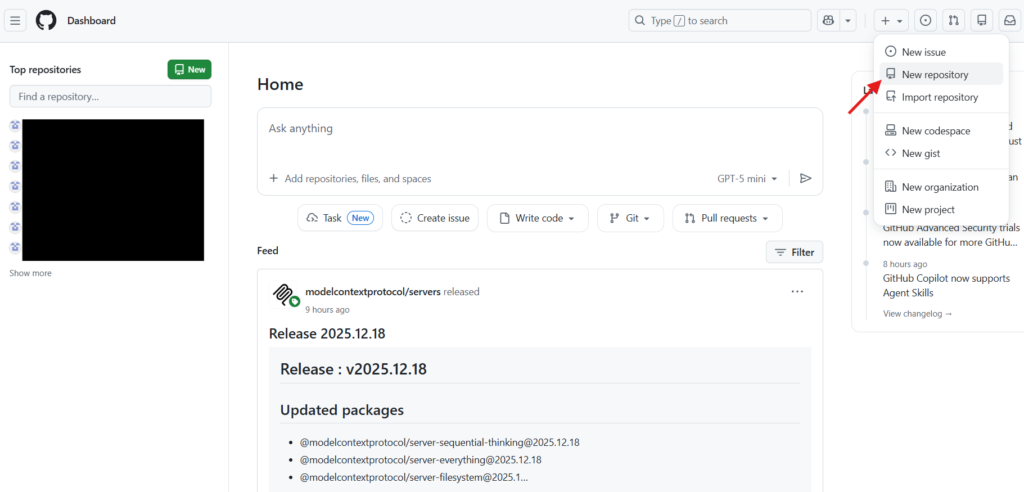
You'll be asked for a repository name during creation; choose something clear like "obsidian-vault."
This is important: there's a choice between Public/Private, so choose Private if you don't want to share it with the whole world. You can change this later.
Leave everything else as is and it should be fine.
Once done, press "Create Repository."
After creation, an SSH URL will appear, so press the copy button on the right side to save it. For example, if you named your repository "obsidian-vault," the address should look like this:
git@github.com:yourname/obsidian-vault.git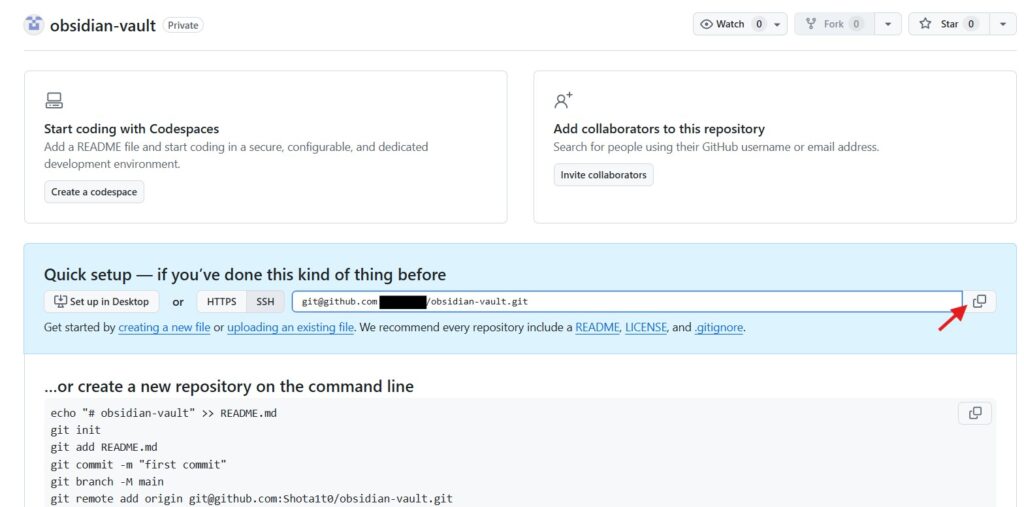
▲This is the part indicated by the red arrow on the screen
3. Install Git (Windows)
Next, install Git, the management system.
Access https://git-scm.com/
Select "Download for Windows"
For the installer, basically click "Next" for everything
Once installed, select "Start Menu" > type "cmd" to open Command Prompt. Then enter the following command:
git --versionIf the installation was successful, you should see something like:
git version 2.44.0.windows.1showing the installed version.
By the way, from here on we'll be using Command Prompt, a CLI (Command Line Interface). For those unfamiliar, it might seem confusing, but broadly speaking, you input like this:
<command name> -<abbreviated argument>or
<command name> --<argument>An "argument" is something you pass to specify what to use with the command. This time, we're using the git command to use the git system, and specifying with the --version argument that we want to check the version. We'll continue using this git command going forward.
By the way, in Command Prompt, on the left you should see something like:
C:/users/<username>This indicates the path (location within your PC) where you currently are. When you create files like SSH keys in the next step, they're basically created at that path, so keep this in mind.
4. Create SSH Keys
Let's create an SSH key. This is a key for connecting GitHub and your local PC, an important security item that ensures only you can access your GitHub.
Generate SSH Key
Execute the following in Command Prompt again:
ssh-keygen -t ed25519 -C "your_email@example.com"This creates a file that becomes the key for connecting to GitHub.
Various prompts will appear, but you can basically just press Enter to proceed. If you want to prioritize security and add a passphrase, you can enter it here.
The " " part is a comment field so you can enter anything, but entering the email address you use with GitHub makes it easy to understand which account the key corresponds to.
Entering as-is will create the following files in your home directory:
Generated files:
~/.ssh/id_ed25519
~/.ssh/id_ed25519.pub
These become your keys, so next we'll register this key with GitHub.
Register SSH Key with GitHub
Display the SSH key with the following command. type is a command used in cmd to display file contents:
type ~/.ssh/id_ed25519.pub
Copy the entire displayed line. I apologize for having to hide many parts, but on an actual screen it looks like this. Copy everything from ssh-ed25519.

Next, open GitHub and paste everything you just copied into the key registration screen. Open the registration screen with the following steps:
- Top right icon → Settings
- Select "SSH and GPG keys"
- Press "New SSH key"
- Title: Name it something like "My PC"
- Key type: Leave as "Authentication key"
- Key: Paste the public key you just copied
- Press "Add SSH key" to complete
Now you're ready to connect your local PC and GitHub.
SSH Connection Test
Try entering the following command in Command Prompt:
ssh -T git@github.comIf you see the following, it's successful:
Hi <yourname>! You've successfully authenticated...If you've made it this far smoothly, you're almost done.
5. Turn Your Obsidian Vault into a Git Repository
Next, navigate to the folder you want to cloud-manage in Obsidian and enable it to use the Git system.
Navigate to Vault Folder
cd is a command for moving directories. Copy the path to your Obsidian folder and enter it after cd like this to move there:
cd "C:\Users\YourName\Documents\Obsidian\MyVault"Then the C:/users/...> text on the left should change to your Obsidian folder path. Be very careful here, because if you get this wrong, you might upload a completely different folder.
Git Initialization
Once you've confirmed the left side shows the path to the folder you want to use, enable git for this folder:
git initThis completes the preparation.
Create .gitignore (Important)
Before starting git management, set up a .gitignore file. This specifies files that won't be version-controlled by git in advance.
Why is this important? Because you can:
- Exclude files that should absolutely not be uploaded for security reasons, like passwords or API keys
- Exclude files exceeding 50MB
If you don't set this up first, they'll be uploaded as-is, so be sure to do this initially.
Git will automatically recognize it if the filename is .gitignore, so enter the following to create a file in a text editor like Notepad:
notepad .gitignoreFor example, I use it like this. The * is a wildcard meaning any filename is included:
.obsidian/
*.pdf
*.mp4
*.env
The .obsidian/ folder is always included in Obsidian vaults and contains settings and plugin files. I generally think settings aren't necessary, and since the file size can be large, I think it's safer to exclude it.
6. Connect to GitHub Repository
Now, finally, let's connect to GitHub. With the following command, replace "yourname" with your GitHub username and enter it:
git remote add origin git@github.com:yourname/obsidian-vault.gitTo confirm, enter the following command and your GitHub repository you want to sync should appear:
git remote -vIf you've made it this far, ① Git management of your local PC folder is possible, ② Device sharing via GitHub is possible.
7. Initial Upload (push)
Finally, let's try the initial upload.
git add .This is the command to reflect all files that have changed in git. The . (period) at the end means everything. With this add, you select the files you want to reflect.
Next, commit. This actually reflects the changes to git:
git commit -m "Initial commit of Obsidian vault"The -m " " part allows you to enter any comment about what changes you made, so it's good to write what you changed and how.
Next, set to the main branch (branch name). This probably isn't a problem even without it, but just to be safe:
git branch -M mainFinally, upload to GitHub using the push command:
git push -u origin mainAccess your GitHub repository page, and if you can see the contents of your Vault, you've succeeded. Great work!
Syncing After Initial Setup
Before work (GitHub → PC): You can pull the latest GitHub data with the pull command:
git pullAfter work (PC → GitHub): Same as the previous steps. Only the branch movement command is unnecessary:
git add .
git commit -m "<write your note>"
git push
Summary
With this, you can now share, sync, and edit your Obsidian contents across other devices. GitHub also has a mobile app, and you can edit directly from GitHub, making it easy to use from anywhere.
Since you can now reference and edit your notes anytime, anywhere, please make use of this.
Additional Note
By the way, I noticed after writing this that there's a "Git" plugin in Obsidian's Community plugins that allows you to manage git without using CLI. However, since plugins are inevitably created by individuals, I personally feel more comfortable understanding and managing it myself, so I don't use it. What I introduced today is basically what the plugin makes easier, so in any case, I think it's good to understand the basic mechanism.

コメント